Memprofiler helps to track memory allocations of your Go applications on
large time intervals. Go runtime implements multiple memory management
optimizations in order to achieve good performance, low heap allocation
cost and high degree of memory reuse. Therefore, sometimes it may be
tricky to distinguish “normal” runtime behaviour from real memory leak.
If you have doubts whether your Go service is leaking, you’re on the right
track. Memprofiler aims to be an open source equivalent of
stackimpact.com.
Warning: The project is under active development and not ready for usage yet.
Getting started
Memprofiler is a client-server application. Memprofiler client is embedded
into your Go service and streams memory usage reports to the Memprofiler server.
Memprofiler server stores reports and performs some computations on the
data stream to turn it in a small set of aggregated metrics.
User will be able to interact with Memprofiler server via simple Web UI.
Client
To use Memprofiler in your application, run client in your main function:
package example
import (
"time""github.com/sirupsen/logrus""github.com/memprofiler/memprofiler/client""github.com/memprofiler/memprofiler/schema""github.com/memprofiler/memprofiler/utils"
)
funcmain() {
// prepare client configurationcfg:=&client.Config{
// server addressServerEndpoint: "localhost:46219",
// description of your application instanceServiceDescription: &schema.ServiceDescription{
ServiceType: "test_application",
ServiceInstance: "node_1",
},
// granularityPeriodicity: &utils.Duration{Duration: time.Second},
// logging settingVerbose: false,
}
// you can implement your own loggerlog:=client.LoggerFromLogrus(logrus.New())
// run profiler and stop it explicitly on exitprofiler, err:=client.NewProfiler(log, cfg)
iferr!=nil {
panic(err)
}
profiler.Start()
deferprofiler.Quit()
// ...
}
Server
To run Memprofiler server, just install it and prepare server config
(you can refer to config example).
 ✗ GO111MODULE=on go get github.com/memprofiler/memprofiler
 ✗ memprofiler -c config.yml
DEBU[0000] Starting storage
DEBU[0000] Starting metrics computer
INFO[0000] HTTP Frontend server resource                 URL=/schema.MemprofilerFrontend/GetSessions subsystem=frontend
INFO[0000] HTTP Frontend server resource                 URL=/schema.MemprofilerFrontend/GetServices subsystem=frontend
INFO[0000] HTTP Frontend server resource                 URL=/schema.MemprofilerFrontend/GetInstances subsystem=frontend
INFO[0000] HTTP Frontend server resource                 URL=/schema.MemprofilerFrontend/SubscribeForSession subsystem=frontend
INFO[0000] Starting service                              service=backend
INFO[0000] Starting service                              service=frontend
{rdss} is an R package, that can be used both through the command-line interface and an R-shiny application, for making sex estimation somewhat easier. The global approach follows the philosophy of “diagnose sexuelle secondaire”, described by Murail et. al (1999).
Feature requests or bug reports are welcome.
Documentation
Publication
This R package has been extensively described and documented in an article published in the International Journal of Osteoarchaeology. This article can be seen as the official (and the main) documentation of {rdss}.
Video tutorial
A video tutorial, illustrating the main features of {rdss}, is available on Vimeo. This video presents an older version of {rdss} (v0.9.7); some slight changes in the user interface have been made in the newest version.
Package vignette
A package vignette is available for those users who would also like to use {rdss} internal functions in R scripts, for performing sex estimation through the command line. The package vignette can be consulted by running the following command into the R console:
This hardware-based PWM library enables you to use Hardware-PWM on SAMD21/SAMD51 boards such as NANO_33_IOT, ITSYBITSY_M4, SEEED_XIAO_M0, SparkFun SAMD51_Thing_Plus, etc., to create and output PWM. These purely hardware-based PWM channels can generate very high PWM frequencies, depending on CPU clock and acceptable accuracy. The maximum resolution can be 16-bit for better accuracy when using Timer TCCx. With Timer TCx, only 8-bit resolution is supported with lower accuracy.
This library is using the same or similar functions as other FastPWM sibling libraries, as follows, to enable you to port your PWM code easily between platforms
The most important feature is they’re purely hardware-based PWM channels. Therefore, their operations are not blocked by bad-behaving software functions / tasks.
This important feature is absolutely necessary for mission-critical tasks. These hardware PWM-channels, still work even if other software functions are blocking. Moreover, they are much more precise (certainly depending on clock frequency accuracy) than other software timers using millis() or micros(). That’s necessary if you need to control external systems (Servo, etc.) requiring better accuracy.
New efficient setPWM_manual() function enables waveform creation using PWM.
The PWM_Multi example will demonstrate the usage of multichannel PWM using multiple Hardware-PWM blocks (Timer & Channel). The 4 independent Hardware-PWM channels are used to control 4 different PWM outputs, with totally independent frequencies and dutycycles on SAMD21/SAMD51.
Being hardware-based PWM, their executions are not blocked by bad-behaving functions / tasks, such as connecting to WiFi, Internet or Blynk services.
This non-being-blocked important feature is absolutely necessary for mission-critical tasks.
Why using hardware-based PWM is better
Imagine you have a system with a mission-critical function, controlling a robot or doing something much more important. You normally use a software timer to poll, or even place the function in loop(). But what if another function is blocking the loop() or setup().
So your function might not be executed, and the result would be disastrous.
You’d prefer to have your function called, no matter what happening with other functions (busy loop, bug, etc.).
The correct choice is to use hardware-based PWM.
These hardware-based PWM channels still work even if other software functions are blocking. Moreover, they are much more precise (certainly depending on clock frequency accuracy) than other software-based PWMs, using millis() or micros().
Functions using normal software-based PWMs, relying on loop() and calling millis(), won’t work if the loop() or setup() is blocked by certain operation. For example, certain function is blocking while it’s connecting to WiFi or some services.
The best and easiest way is to use Arduino Library Manager. Search for SAMD_PWM, then select / install the latest version.
You can also use this link for more detailed instructions.
Use included platformio.ini file from examples to ensure that all dependent libraries will installed automatically. Please visit documentation for the other options and examples at Project Configuration File
Packages’ Patches
1. For Arduino SAMD boards
To be able to compile without error and automatically detect and display BOARD_NAME on Arduino SAMD (Nano-33-IoT, etc) boards, you have to copy the whole Arduino SAMD Packages_Patches directory into Arduino SAMD directory (~/.arduino15/packages/arduino/hardware/samd/1.8.13).
For core version v1.8.10+
Supposing the Arduino SAMD version is 1.8.13. Now only one file must be copied into the directory:
 ...\arm-none-eabi\include\c++\7.2.1\bits\stl_algobase.h:243:56: error: macro "min" passed 3 arguments, but takes just 2
     min(const _Tp& __a, const _Tp& __b, _Compare __comp)
Whenever the above-mentioned compiler error issue is fixed with the new Arduino SAMD release, you don’t need to copy the Arduino.h file anymore.
2. For Adafruit SAMD boards
To be able to compile without error and automatically detect and display BOARD_NAME on Adafruit SAMD (Itsy-Bitsy M4, etc) boards, you have to copy the files in Adafruit SAMD Packages_Patches into Adafruit samd directory (~/.arduino15/packages/adafruit/hardware/samd/1.7.11).
Supposing the Adafruit SAMD core version is 1.7.11. This file must be copied into the directory:
Whenever a new version is installed, remember to copy this file into the new version directory. For example, new version is x.yy.zz
This file must be copied into the directory:
To be able to compile without error and automatically detect and display BOARD_NAME on Seeeduino SAMD (XIAO M0, Wio Terminal, etc) boards, you have to copy the files in Seeeduino SAMD Packages_Patches into Seeeduino samd directory (~/.arduino15/packages/Seeeduino/hardware/samd/1.8.3).
Supposing the Seeeduino SAMD core version is 1.8.3. This file must be copied into the directory:
Whenever a new version is installed, remember to copy this file into the new version directory. For example, new version is x.yy.zz
This file must be copied into the directory:
To be able to compile without error and automatically detect and display BOARD_NAME on SparkFun SAMD (XIAO SparkFun_RedBoard_Turbo, SparkFun_SAMD51_Thing_Plus, etc) boards, you have to copy the file SparkFun SAMD Packages_Patches into SparkFun samd directory (~/.arduino15/packages/SparkFun/hardware/samd/1.8.3).
Supposing the SparkFun SAMD core version is 1.8.3. This file must be copied into the directory:
Whenever a new version is installed, remember to copy this file into the new version directory. For example, new version is x.yy.zz
This file must be copied into the directory:
4. Set or change PWM frequency and dutyCycle manually and efficiently in waveform creation
Function prototype
// Must have same frequency// From v1.0.1-, DCValue = 0-100// From v1.2.0+, DCValue = 0-65535boolsetPWM_manual(constuint8_t& pin, constuint16_t& dutyCycle);
// DCPercentage from 0.0f - 100.0fboolsetPWM_DCPercentage_manual(constuint8_t& pin, constfloat& DCPercentage);
// DCPercentage from 0-65535 for 0.0f - 100.0fboolsetPWM_DCPercentageInt_manual(constuint8_t& pin, constuint16_t& DCPercentage);
for (uint8_t index = 0; index < NUM_OF_PINS; index++)
{
printPWMInfo(PWM_Instance[index]);
}
}
voidloop()
{
//Long delay has no effect on the operation of hardware-based PWM channels
delay(1000000);
}
Debug Terminal Output Samples
1. PWM_DynamicDutyCycle on SAMD_NANO_33_IOT
The following is the sample terminal output when running example PWM_DynamicDutyCycle on SAMD21 SAMD_NANO_33_IOT, to demonstrate the ability to provide high PWM frequencies and ability to change DutyCycle on-the-fly using TCC timer for 16-bit PWM
The following is the sample terminal output when running example PWM_Multi on SAMD21 SAMD_NANO_33_IOT, to demonstrate the ability to provide high PWM frequencies on multiple PWM-capable pins using TCC timer for 16-bit PWM
The following is the sample terminal output when running example PWM_DynamicFreq on SAMD51 ITSYBITSY_M4, to demonstrate the ability to change dynamically PWM frequencies on SAMD51 using TCC timer for 16-bit PWM
The following is the sample terminal output when running example PWM_Waveform on SAMD51 ITSYBITSY_M4, to demonstrate how to use the setPWM_manual() function in wafeform creation using TCC timer for 16-bit PWM
The following is the sample terminal output when running example PWM_Basic on SAMD51 ITSYBITSY_M4, to demonstrate how to use the basic function, using TC timer for 8-bit PWM
The following is the sample terminal output when running example PWM_Basic on SAMD21 SAMD_NANO_33_IOT, to demonstrate how to use the basic function, using TC timer for 8-bit PWM
The following is the sample terminal output when running example PWM_manual on SAMD51 ITSYBITSY_M4, to demonstrate how to use the setPWM_manual() and setPWM_DCPercentage_manual() functions in wafeform creation
Starting PWM_manual on ITSYBITSY_M4
SAMD_PWM v1.2.0
Not USING_DC_PERCENT
=================================================================================================
Actual data: pin = 11, PWM DC = 0.00, PWMPeriod = 500.00, PWM Freq (Hz) = 2000.0000
=================================================================================================
=================================================================================================
Actual data: pin = 11, PWM DC = 5.00, PWMPeriod = 500.00, PWM Freq (Hz) = 2000.0000
=================================================================================================
=================================================================================================
Actual data: pin = 11, PWM DC = 10.00, PWMPeriod = 500.00, PWM Freq (Hz) = 2000.0000
=================================================================================================
=================================================================================================
Actual data: pin = 11, PWM DC = 15.00, PWMPeriod = 500.00, PWM Freq (Hz) = 2000.0000
=================================================================================================
=================================================================================================
Actual data: pin = 11, PWM DC = 20.00, PWMPeriod = 500.00, PWM Freq (Hz) = 2000.0000
=================================================================================================
=================================================================================================
Actual data: pin = 11, PWM DC = 25.00, PWMPeriod = 500.00, PWM Freq (Hz) = 2000.0000
=================================================================================================
=================================================================================================
Actual data: pin = 11, PWM DC = 30.00, PWMPeriod = 500.00, PWM Freq (Hz) = 2000.0000
=================================================================================================
=================================================================================================
Actual data: pin = 11, PWM DC = 35.00, PWMPeriod = 500.00, PWM Freq (Hz) = 2000.0000
=================================================================================================
=================================================================================================
Actual data: pin = 11, PWM DC = 40.00, PWMPeriod = 500.00, PWM Freq (Hz) = 2000.0000
=================================================================================================
=================================================================================================
Actual data: pin = 11, PWM DC = 45.00, PWMPeriod = 500.00, PWM Freq (Hz) = 2000.0000
=================================================================================================
=================================================================================================
Actual data: pin = 11, PWM DC = 50.00, PWMPeriod = 500.00, PWM Freq (Hz) = 2000.0000
=================================================================================================
=================================================================================================
Actual data: pin = 11, PWM DC = 55.00, PWMPeriod = 500.00, PWM Freq (Hz) = 2000.0000
=================================================================================================
=================================================================================================
Actual data: pin = 11, PWM DC = 60.00, PWMPeriod = 500.00, PWM Freq (Hz) = 2000.0000
=================================================================================================
=================================================================================================
Actual data: pin = 11, PWM DC = 65.00, PWMPeriod = 500.00, PWM Freq (Hz) = 2000.0000
=================================================================================================
=================================================================================================
Actual data: pin = 11, PWM DC = 70.00, PWMPeriod = 500.00, PWM Freq (Hz) = 2000.0000
=================================================================================================
=================================================================================================
Actual data: pin = 11, PWM DC = 75.00, PWMPeriod = 500.00, PWM Freq (Hz) = 2000.0000
=================================================================================================
=================================================================================================
Actual data: pin = 11, PWM DC = 80.00, PWMPeriod = 500.00, PWM Freq (Hz) = 2000.0000
=================================================================================================
=================================================================================================
Actual data: pin = 11, PWM DC = 85.01, PWMPeriod = 500.00, PWM Freq (Hz) = 2000.0000
=================================================================================================
=================================================================================================
Actual data: pin = 11, PWM DC = 90.01, PWMPeriod = 500.00, PWM Freq (Hz) = 2000.0000
=================================================================================================
=================================================================================================
Actual data: pin = 11, PWM DC = 95.01, PWMPeriod = 500.00, PWM Freq (Hz) = 2000.0000
=================================================================================================
=================================================================================================
Actual data: pin = 11, PWM DC = 100.00, PWMPeriod = 500.00, PWM Freq (Hz) = 2000.0000
=================================================================================================
=================================================================================================
Actual data: pin = 11, PWM DC = 0.00, PWMPeriod = 500.00, PWM Freq (Hz) = 2000.0000
=================================================================================================
...
8. PWM_SpeedTest on ITSYBITSY_M4
The following is the sample terminal output when running example PWM_SpeedTest on ITSYBITSY_M4, to demonstrate how to use new faster setPWM_manual() function in wafeform creation, The time is 1084 ns compared to 499,500 ns when using setPWM() function. The fastest is setPWM_DCPercentageInt_manual with 1067 ns, which is better to be used with pre-calculated values in array
USING_DC_PERCENT
Starting PWM_SpeedTest on ITSYBITSY_M4
SAMD_PWM v1.2.0
Average time of setPWM function USING_DC_PERCENT
=================================================================================================
Actual data: pin = 11, PWM DC = 44.86, PWMPeriod = 500.00, PWM Freq (Hz) = 2000.0000
=================================================================================================
count=937083, ns=1067
=================================================================================================
Actual data: pin = 11, PWM DC = 44.86, PWMPeriod = 500.00, PWM Freq (Hz) = 2000.0000
=================================================================================================
count=936335, ns=1067
=================================================================================================
Actual data: pin = 11, PWM DC = 44.86, PWMPeriod = 500.00, PWM Freq (Hz) = 2000.0000
=================================================================================================
count=936358, ns=1067
=================================================================================================
Actual data: pin = 11, PWM DC = 44.86, PWMPeriod = 500.00, PWM Freq (Hz) = 2000.0000
=================================================================================================
count=936334, ns=1067
...
USING_DC_PERCENT with extremely slow setPWM()
Starting PWM_SpeedTest on ITSYBITSY_M4
SAMD_PWM v1.2.0
Average time of setPWM function USING_DC_PERCENT
=================================================================================================
Actual data: pin = 11, PWM DC = 50.00, PWMPeriod = 500.00, PWM Freq (Hz) = 2000.0000
=================================================================================================
count=2002, ns=499500
=================================================================================================
Actual data: pin = 11, PWM DC = 50.00, PWMPeriod = 500.00, PWM Freq (Hz) = 2000.0000
=================================================================================================
count=2003, ns=499251
=================================================================================================
Actual data: pin = 11, PWM DC = 50.00, PWMPeriod = 500.00, PWM Freq (Hz) = 2000.0000
=================================================================================================
count=2003, ns=499251
=================================================================================================
Actual data: pin = 11, PWM DC = 50.00, PWMPeriod = 500.00, PWM Freq (Hz) = 2000.0000
=================================================================================================
count=2003, ns=499251
=================================================================================================
Actual data: pin = 11, PWM DC = 50.00, PWMPeriod = 500.00, PWM Freq (Hz) = 2000.0000
=======================================================
not USING_DC_PERCENT
Starting PWM_SpeedTest on ITSYBITSY_M4
SAMD_PWM v1.2.0
Average time of setPWM function not USING_DC_PERCENT
=================================================================================================
Actual data: pin = 11, PWM DC = 44.86, PWMPeriod = 500.00, PWM Freq (Hz) = 2000.0000
=================================================================================================
count=922600, ns=1083
=================================================================================================
Actual data: pin = 11, PWM DC = 44.86, PWMPeriod = 500.00, PWM Freq (Hz) = 2000.0000
=================================================================================================
count=921932, ns=1084
=================================================================================================
Actual data: pin = 11, PWM DC = 44.86, PWMPeriod = 500.00, PWM Freq (Hz) = 2000.0000
=================================================================================================
count=921965, ns=1084
=================================================================================================
Actual data: pin = 11, PWM DC = 44.86, PWMPeriod = 500.00, PWM Freq (Hz) = 2000.0000
=================================================================================================
count=921951, ns=1084
=================================================================================================
Actual data: pin = 11, PWM DC = 44.86, PWMPeriod = 500.00, PWM Freq (Hz) = 2000.0000
=================================================================================================
count=921942, ns=1084
Debug
Debug is enabled by default on Serial.
You can also change the debugging level _PWM_LOGLEVEL_ from 0 to 4
// Don't define _PWM_LOGLEVEL_ > 0. Only for special ISR debugging only. Can hang the system.
#define_PWM_LOGLEVEL_0
Troubleshooting
If you get compilation errors, more often than not, you may need to install a newer version of the core for Arduino boards.
Sometimes, the library will only work if you update the board core to the latest version because I am using newly added functions.
Add example PWM_StepperControl to demo how to control Stepper Motor using PWM
Add example PWM_manual to demo how to correctly use PWM to generate waveform
Add function setPWM_DCPercentage_manual() to facilitate the setting PWM DC manually by using DCPercentage, instead of absolute DCValue depending on varying PWMPeriod
Optimize speed with new setPWM_DCPercentageInt_manual function to improve speed almost 500 times compared to setPWM
Add example PWM_SpeedTest to demo the better speed of new setPWM_DCPercentageInt_manual function
Breaking change: Modify setPWM_manual function to take 16-bit dutycycle instead from merely 0-100 for better accuracy
Modify example PWM_Waveform to adapt to breaking change of setPWM_manual function
Improve README.md so that links can be used in other sites, such as PIO
Contributions and Thanks
Many thanks for everyone for bug reporting, new feature suggesting, testing and contributing to the development of this library.
Welcome to the GitHub repository for the Nuphy udev rules! This repository contains the essential udev rules needed to ensure compatibility and proper permissions for nuphy hardware. These rules are particularly designed to work seamlessly with the VIA web application at usevia.app.
Overview
Udev is a device manager for the Linux kernel, which dynamically creates or removes device nodes in the /dev directory. For the nuphy keyboards, specific udev rules are required to set the correct permissions, allowing applications like usevia.app to interact with them without needing root privileges.
This repository provides the necessary udev rules to facilitate this interaction, ensuring a smooth and secure experience for users of Nupy Keyboards on Linux systems.
I cannot gurantee or verify if all devices will work because I do not own all of them (Why should I?!). But using the json files from the offficial site I do have the IDs they used. So should work right?
In the worst case open an issue and let me know.
Supported devices
Tested by developer:
Nuphy Air96 v2
Nuphy Air60 v2
Untested (Should work I dont have one tho):
Nuphy Air75 v2
NuPhy Gem80
NuPhy Halo75
NuPhy Halo96
NuPhy Nos75
Tested/Added by contributors:
Nuphy Air60 HE (Phrozenn1)
Nuphy Kick75 (mfiumara)
NuPhy Halo65 HE (IcarusSosie)
NuPhyX BH65 (pigdey)
NuPhy Air75 v3 (jwa464)
NuPhy Field75 (gtrias)
NuPhy Air75 HE (venomyt3)
Installation
Prerequisites
A Linux-based operating system.
A supported Nuphy device.
Steps
Clone the Repository:
git clone https://github.com/Z3R0-CDS/nuphy-linux
Navigate to the Repository:
cd nuphy-linux
Install the Udev Rule:
Manual
sudo cp nuphy.rules /etc/udev/rules.d/
sudo udevadm control --reload-rules && sudo udevadm trigger
Automated
./install_rules.sh
Verify Installation:
Connect your Nuphy device and verify if it’s detected correctly by the via application.
Make sure to follow the guide of the Official website to ensure its working as intended.
Also keep in mind it might be required to reopen the browser or try in a private tab if you attempted to use via before.
I had some cached issues with the permissions at first and testing in a private tab helped.
Usage
Once installed, the udev rules will automatically set the correct permissions for your Nuphy Device.
This allows the via web application to detect and interact with your device without requiring additional configurations.
For more information or support, open an issue in this repository. I will try to respond asap
Create a rule yourself.
Commands
Get a list of usb devices.
lsusb
Get data of your device.
Bus 005 Device 007: ID 19f5:3265 NuPhy NuPhy Air96 V2 <- Example output for my nuphy
                           ^
                         These are the vendor ID and device ID
Vendor will be 19f5 because nuphy is nuphy.
Create a rule.
 <notepad app(kate)> nuphy-<something>.rules
 Enter the rules:
 SUBSYSTEM=="usb", ENV{DEVTYPE}=="usb_device", ATTR{idVendor}=="<vendorID>", ATTR{idProduct}=="<deviceID>", MODE="0666"

 KERNEL=="hidraw*", ATTRS{idVendor}=="<vendorID>", ATTRS{idProduct}=="<deviceID>", MODE="0666"
Create a rule.
Then just copy and apply as above.
Also sharing is caring so open a merge request.
SELECT protobuf_query('MyProto:some_submessage.some_map[some_key]', my_proto_column) FROM ...;
-- or for multiple results as an arraySELECT protobuf_query_array('MyProto:some_repeated_field[*].some_map[*].some_field', my_proto_column) FROM ...;
-- or as rowsSELECT protobuf_query_multi('MyProto:some_repeated_field[*].some_map[*].some_field', my_proto_column) FROM ...;
Why put protobufs in a database?
Protobufs in a database is in many ways similar to JSON in a database:
less code needed to convert data structures into database rows and back
less alter tables required as data fields are added and removed
The main advantage of protobufs over JSON is a compact and efficient representation.
The main advantage of JSON is human-readability without extra steps.
What about storing protobufs as JSON?
Protobufs have a well-defined JSON representation supported by most implementations.
Using that for storage (as json or jsonb)
is a valid strategy if efficiency is not a major concern.
Note that JSON protobufs store fields by name instead of by number,
which means that field renames will break backwards- and forwards-compatibility.
Installation from source
Requires Postgres 11 or newer.
Prerequisites for installing from source:
Postgres server headers (if you use the Postgres APT repo, install postgresql-server-dev-$VERSION)
A (mostly) C++17-capable compiler (Ubuntu 18.04’s default GCC 7.4.0 works)
Currently they are built with and tested on Ubuntu 20.04 only.
You can build your own binary package from source with make dist.
On Ubuntu, install the contents of the binary package like this:
copy the contents of lib/ to /usr/lib/postgresql/11/lib/
copy the contents of extension/ to /usr/share/postgresql/11/extension/
Other distros may have those Postgres directories elsewhere.
Usage
First, you need to tell the extension about your protobuf schema.
Run the protobuf compiler protoc on your .proto files with
--descriptor_set_out=path/to/schema.pb and --include_imports,
then insert that file to the database with
INSERT INTO protobuf_file_descriptor_sets (name, file_descriptor_set)
VALUES ('default', contents_of_file)
where contents_of_file is a Postgres byte array.
Commit the transaction if you’re in one.
Now you can query protobufs described by your schema like this:
SELECT protobuf_query('path.to.Message:path.to.field', protobuf_as_byte_array) AS result;
Reference
The following functions are defined:
protobuf_query(query, protobuf) returns the first matching field in the protobuf, or NULL if missing or proto3 default. (You can coalesce the nulls.)
protobuf_query_array(query, protobuf) returns all matching fields in the protobuf as a text array. Missing or proto3 default values are not returned.
protobuf_query_multi(query, protobuf) returns all matching fields in the protobuf as a set of rows. Missing or proto3 default values are not returned.
protobuf_to_json_text(protobuf_type, protobuf) converts the protobuf to a JSON string, assuming it’s of the given type.
protobuf_from_json_text(protobuf_type, json_str) parses a protobuf from a JSON string, assuming it’s of the given type.
protobuf_extension_version() returns the extension version X.Y.Z as a number X*10000+Y*100+Z.
Queries take the form [<descriptor_set>:]<message_name>:<path>
where
<descriptor_set> (optional) is the name of the descriptor set you inserted into protobuf_file_descriptor_sets. Defaults to default.
<message_name> is a fully qualified name of a protobuf message.
<path> may be composed of
field selectors like submessage.field. Fields may be specified by name or by number.
index selectors like field[123], which select the Nth element of a repeated field.
map value selectors like field[123] or field[abc], which select the given map key (both numbers and strings work).
universal selectors written field[*], which select all elements of a repeated field or map.
universal map key selectors written field|keys, which select all keys of a map.
Caveats
While this extension should be good to go for exploratory queries and
other non-demanding workloads, there are some limitations to consider
before relying on it too heavily in a design.
Security
This extension is written in C++, so some caution is warranted.
It’s may be unwise to give it untrusted queries or protobuf data that you haven’t
parsed and reserialized first. Conversion to/from JSON should be safer since it
thinly wraps the well-tested protobuf library, but see the note about memory management below.
Performance
Queries need to load and scan through the entire protobuf column. Storing and
querying large protobufs can be significantly slower than splitting the data into columns
that can be queried individually.
In the current version, protobuf schemas are deserialized and cached only for the duration of a single transaction.
If you intend to run many SELECTs on protobufs, wrap them in a transaction for better performance.
In the current version, there is no way to use the query functions as index expressions,
because the query functions depend on your protobuf schema, which may change over time.
In other words, you can’t create an index (nor a UNIQUE constraint) on the contents of a protobuf column.
A future version may allow such indices for queries that are written entirely in terms of field numbers.
Memory management
This extension allocates most things on the default C++ heap,
because the protobuf library does not support custom allocators.
This memory might not be properly accounted for by Postgres’s
memory management and monitoring systems.
While care has been taken to avoid memory leaks and to tolerate memory exhaustion at any point,
this has not been rigorously tested, and I am unsure whether the protobuf library always cleans up
correctly after a bad_alloc exception.
In the current version, protobuf map
values are buffered before being scanned by queries. This means that huge protobufs whose bulk is under a
highly nested map may take a lot of memory. Note that an attacker can easily construct such a
protobuf if the schema has recursion involving a map. This caveat applies only to queries,
not to JSON conversion.
Other than the above case, memory use is linear, or roughly
O(|descriptor sets| + |largest protobuf queried| + |result set|).
Compatibility
Protobuf versions 2 and 3 should both work,
but groups
(which have been deprecated for a long time)
are currently not supported and will cause queries to fail if encountered.
Note that proto3 does not store default values for fields.
The current implementation returns no result for missing values.
This means that e.g. a numeric field whose value is 0 will not show up in results.
A future version may change this default.
This extension has so far only been tested on AMD64.
Advanced operations
The current version does not provide functions for modifying the contents of protobufs,
and there are no concrete plans to add such functonality.
There are also no concrete plans to significantly extend the query language.
If you do need these features occasionally, consider converting to JSON and back,
since Postgres has a wide range of JSON operations.
Comparison with pg_protobuf
There is an older project pg_protobuf,
which appears to have been an experiment that is no longer actively maintained.
It has less features and conveniences, e.g. fields must be referred to by number,
but its code is much simpler, with no dependency on the Protobuf library or C++.
This repository houses the backend code for iMemoraise, the Integrated Quran Memorization Information System.
🔥 Designed to streamline the recitation submission process, particularly for UIN Suska Riau. 🔥
iMemoraise: Integrated Quran Memorization Information System UIN Suska Riau
(build with 💚💜 using: Express TS + Prisma-ORM + Bun + PostgreSQL)
✨ What’s the deal with iMemoraise? ✨ // ✧˚ ༘ ⋆。♡˚
iMemoraise(Integrated Quran Memorization Information System) is a comprehensive web application created to enhance the management and tracking of Quran recitations. This system is specifically designed to support educational institutions in overseeing and recording students’ recitations, which are mandatory for progressing to internships, seminars, final projects, and other academic activities. By providing a streamlined platform for tracking these essential recitations, iMemoraise simplifies the administrative process, ensuring that all requirements are met efficiently. This application is particularly tailored for use at UIN Suska Riau, where it aids in managing students’ academic progress and compliance with Quran memorization prerequisites.
⚙️ Before You Begin
Before you start, we recommend familiarizing yourself with the essential components needed to build an Express TypeScript application using Prisma ORM, Bun, and PostgreSQL:
Prisma ORM – Learn about Prisma ORM from the Prisma Official Website. The Getting Started guide will help you set up your database schema and integrate Prisma with your application.
Bun – Visit the Bun Official Website for information on Bun, a fast JavaScript runtime. Check out the Getting Started guide for installation and usage instructions.
Prisma ORM – Install Prisma using Bun. After setting up Node.js and Bun, follow the Prisma installation guide to integrate Prisma with PostgreSQL.
🚀 Key Features of iMemoraise
iMemoraise is designed to enhance the management and tracking of Quran recitations for Academic Advisors and students. Here are the main features provided:
For Academic Advisors:
Recitation Management: Monitor and track the progress of students’ Quran recitations under their guidance. Review the completeness and accuracy of memorization progress.
Approval Process: Listen to students’ offline Quran recitations and assess their memorization progress, then approve or reject the recitations based on your assessment. Provide feedback directly to students to ensure they meet the required standards.
For Students:
Progress Tracking: Keep an eye on the status of each recitation you’ve submitted later, monitor your own progress and view updates on the status of your recitations based on feedback from Academic Advisors. Students submit their recitations offline, and no online submission is required.
👣 Usage Scenario
iMemoraise uses Keycloak for identity and access management. Keycloak handles authentication and authorization, providing secure access through its OAuth2 and OpenID Connect protocols.
Here’s a simple scenario for logging in as an Academic Advisor or student:
Account Setup: Academic Advisors are assigned roles via Keycloak, which sets up accounts with default credentials. Advisors can reset their passwords for enhanced security.
Login: Users authenticate via Keycloak using their credentials.
For Academic Advisors: Manage and monitor offline recitations, approve or reject submissions based on your evaluation, then provide live feedback to students to help them meet the required memorization standards.
For Students: Track your recitation progress and receive feedback on your offline submissions.
🤝 Contributing
Contributions are crucial for improving iMemoraise. We welcome and value any help or suggestions.
To contribute, fork the repository, create a pull request, or open a new issue to discuss potential enhancements. Don’t forget to star the repository if you find it helpful! Thank you for your support!
This report is about predicting housing sale prices. To predict the prices two data sets were used, one is the Housing_Data_Train.csv and another one is Housing_Data_Test.csv.
Imagine you have a dataset of houses with various features like size, number of bedrooms, when built, when sold, condition of garage, basement, electricity, heating, air condition etc., and you want to predict their prices. The goal is to build a model that makes accurate predictions considering the core features as the maximum potential of a house.
Here’s what the code does:
It starts by loading the housing data and finding the major features undergoing different steps of data pre-processing
Then, it splits the data into two parts: the “training” set and the “validation” set. The training set is used to teach the model how to make predictions, and the validation set is used to check how well the model is doing.
The code creates a linear regression model, which is a way to make predictions based on the data.
It trains the model using the training data, so the model learns from the features of the houses and their actual prices.
After training, the model makes predictions on the validation set and calculates how accurate those predictions are.
It repeats these steps while varying the complexity of the model. In simpler terms, it tries to build models that could predict target value with accuracy incorporating changes in the elemental data.
Finally, it plots a graph that shows how well each model performs. This graph has a U-shape, and here’s what it means:
On the left side of the U (the simple models), both the training and validation errors are high. This is underfitting because the model is too basic to make good predictions. In the middle of the U, the errors are the lowest. This is the “sweet spot” where the model is just right in terms of complexity.
On the right side of the U (the complex models), the training error becomes very low, but the validation error starts going up. This is overfitting because the model is too complex and starts making bad predictions on new data. In essence, the code shows that finding the right balance in model complexity is crucial. Too simple or too complex models both lead to poor predictions. The goal is to strike the right balance in the middle of the U-shaped curve where the model generalizes well to new, unseen data.
این ریپازیتوری حاوی قالبی جکیلی است که برای [وبسایت شخصی](https://mehdix.ir) خودم ساختهام. انگیزه ایجاد آن هم کمک به افرادی است که سعی دارند سایتی شبیه آن برای خودشان بسازند و پاسخ به سوالاتی است که طی سالهای گذشته در مورد نحوه ساخت آن پیوسته دریافت کردهام. در ادامه روشهای استفاده و سوالات رایج را میآورم. در راهنمای انگلیسی هم نحوه نصب را نوشتهام.
نحوه استفاده
این ریپازیتوری را به دو طریق میتوانید استفاده کنید. روش اول اینست که مستقیما این ریپازیتوری را فورک کنید. روش دوم استفاده از جم روبی این قالب است. هر دو را شرح میدهم.
استفاده به روش فورک
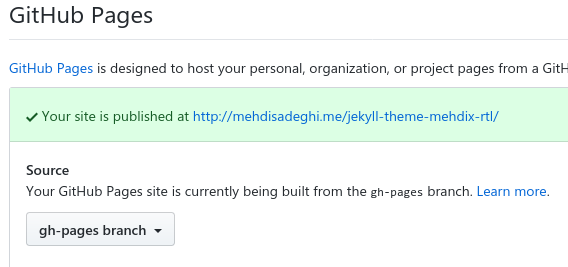
فورک کنید و بعد کلون کنید و اسم و رسم سایت و محتوا را تغییر بدهید و به عنوان یک سایت جدید استفاده کنید. در این روش باید بعد از فورک در ریپازیتوری جدید داخل اکانت خودتان GitHub Pages را فعال کنید و برنج gp-pages را بعنوان برنچ حاوی سایت استاتیک انتخاب کنید (جایی که خروجی بیلد جکیل قرار دارد).
بدون هیچ تغییر دیگری همینکه تغییرات خودتان را پوش کنید سایت بیلد میشود. توجه داشته باشید که اگر از دامنه شخصی بجای دامنهی گیتهاب استفاده میکنید بخش Patch Jekyll config را از فایل گیتهاب اکشنز حذف کنید.
حسن این روش اینست که ساده و سرراست است. لازم نیست با پیچیدگیهای جکیل و تنظیمات قالب را بدانید. عیبش هم اینست که تغییرات جدید در تم را دریافت نمیکند که به نظرم اهمیت چندانی ندارد.
استفاده از طریق روبی جم
ساختار جکیل بکار رفته در این ریپازیتوری به صورت یک جم روبی در دسترسی است. در اینصورت باید یک وبسایت جکیل ساخت و در فایل _config.yml قالب را تغییر داد. این کاری است که در ریپازیتوری وبسایت خودم انجام دادهام. این روش را در شرح انگلیسی نوشتهام.
حسن این روش اینست که میتوان نسخههای جدیدتر تم را به صورت نصب نسخههای جدیتر جم روبی دریافت کرد. عیبش آنست که قالب جکیل به صورت تم محدود است. مثلا جکیل صفحه ۴۰۴ را از داخل جم قالب نمیخواند، همینطور برخی فایلها مانند فایلهای تولید فید را. در ضمن باید تمام تنظیمات بیلد سایت را هم جداگانه انجام داد.
برخی سوالات رایج
تقویم شمسی روی گیتهاب کار نمیکنه. پلاگینها کار نمیکنند!
بیلدر پیشفرض گیتهاب نمیتواند این سایت را بیلد کند چون پلاگینها را ندارد. از تنظیمات بیلد همین وبسایت استفاده کنید که بالاتر شرح دادم.
وبسایت اصلا روی گیتهاب کار نمیکند! گیتهاب برنج gh-pages را اصلا برای وبسایت بکار نمیبرد!
اگر اسم ریپازیتوری همان یوزرنیم شما باشد گیتهاب سایت را از برنج مستر خواهد ساخت. گیتهاب به این سایتها User page میگوید و در غیر اینصورت Project page. روشهایی که برای بیلد توضیح دادم فقط برای Project page کار میکند. یعنی یوزرنیم و نام ریپازیتوری سایت نباید یکسان باشد. برای یوزرپیج احتمالا باید سورس را در یک برنج غیر از مستر ذخیره کنید و خروجی بیلد وبسایت را پوش کنید در برنج مستر. امتحان نکردهام.
کامنتهای استاتیک کار نمیکند!
روی گیتهاب اصلا نمیشود. من روی نتلیفای این کار را انجام دادهام و در مقالهای روش کار را شرح دادهام.
This is the jekyll theme used for my personal Persian website. Persian aka Farsi is written right-to-left, however some people use Roman script to write Persian language in messaging applications and social networks.
During the last few years people have reached out to me asking how to setup a persian Jekyll website with Jalali calendar support. Since Jekyll now supports themes, I created this theme based on my website to help others to bootstrap their own websites.
This repository can be of use to anybody willing to build a new right to left website. I gradually fix issues which I came across while writing new posts in my website. This website is produced using Jekyll static site generator.
Installation
Take the following steps to make your own website based on this theme. First of all, create your website if you have not already:
$ jekyll create mywebsite
Then add this line to your Jekyll site’s Gemfile:
gem"jekyll-theme-mehdix-rtl","~> 3.0"
And add this line to your Jekyll site’s _config.yml:
theme: jekyll-theme-mehdix-rtl
And then execute:
$ bundle install
Or install it yourself as:
$ gem install jekyll-theme-mehdix-rtl
You can override theme style by creating matching files with the same structure inside your Jekyll source tree. See Jekyll Themes docs for more information on that.
Further customization
Styles
You can create a _sass folder and put a file named custom.scss in it. This theme will load it by default.
Layouts
The following layouts are available for your homepage:
home: post titles along with an excerpt and pagination
minimal: only post titles
Comments
This theme supports three comment systems. First one is disqus.
In order to enalbe disqus comments add comment_system:disqus and disqus_shortname:DISQUS_USERNAME to your _config.yml file.
The second approach is static comments. In order to enable static comments add comment_system:static to the config
file. This will load commends from _data/comments folder. There should be one YAML file per post. Name of the file
should be the uuid of the post (each post must have a uuid in its front matter). The following sample defines two
comments for post with uuid 0b64d07f-6c08-475b-a509-463df5458039:
For the time being I am using Netlify to handle custom comment forms on each post page and add them to the
comments using the netlify_comments.py script.
Forcing RTL code blocks
If you put code blocks and they appear incorrectly, you can use Markright gem. First add it to your Gemfile:
gem"jekyll-markright"
And change your config.yml respectively:
markdown: Markright
Footer
If any of the following ids is present in the config a corresponding item will be added to the footer:
github_username
twitter_username
feedburner_id
email
Analytics
In order to send pageviews to Google Analytics set your ID in the _config.yml: google_analytics_id: YOUR_ID
SEO
Make sure to fill entries in the config file correctly to get a better search engine experience.
Specially fill the SEO section with your Github and Twitter usernames. Don’t forget to add lang
and logo entries. See jekyll-seo-tag for further
information.
در هنگام گزارش مشکلات یا شرح تغییرات، فارسی نوشتن خیلی هم خوب است. فقط یک شرط دارد! متن را درون تگ راست به چپ شده بنویسید که درست نمایش داده بشود. اگر هم دوست دارید انگلیسی بنویسید هیچ اشکالی ندارد.
I need to configure NGINX to serve a multilanguage website with URL prefixes like /en/, /fr/ and /de/. For this I want to use the default Gatsby Starter to create some static HTML that I can serve to test my NGINX configuration.
user  nginx;
worker_processes  auto;
worker_rlimit_nofile  15000;
pid  /var/run/nginx.pid;
include /usr/share/nginx/modules/*.conf;


events {
    worker_connections  2048;
    multi_accept on;
    use epoll;
}


http {
    default_type   application/octet-stream;
    # access_log   /var/log/nginx/access.log;
    # activate the server access log only when needed
    access_log     off;
    error_log      /var/log/nginx/error.log;
    # don't display server version on error pages
    server_tokens  off;
    server_names_hash_bucket_size 64;
    include        /etc/nginx/mime.types;
    sendfile       on;
    tcp_nopush     on;
    tcp_nodelay    on;

    charset utf-8;
    source_charset utf-8;
    charset_types text/xml text/plain text/vnd.wap.wml application/javascript application/rss+xml;

    include /etc/nginx/conf.d/default.conf;
    include /etc/nginx/conf.d/buffers.conf;
    include /etc/nginx/conf.d/timeouts.conf;
    include /etc/nginx/conf.d/gzip.conf;
    # Only activate caching in production
    # include /etc/nginx/conf.d/cache.conf;
}